Table of Contents
Why would you want to do this?
LLM’s (Large Language models) are all the buzz at the moment. They are a great companion and tool for developers, researchers, and data scientists. Everyone knows about ChatGPT most likely your grandma aswell. It is a great tool, fast and easy to use, but it is not “free”. All your data might be used to train the model. If you are working with sensitive data this is less then ideal. DeepSeek R1 was just released, and is a awesome alternative to ChatGPT, however it stores your data in China, which is not ideal for everyone. Luckily for us DeepSeek R1 and many other models are “open source” and can be run locally. This is a blog on how to run LLM locally, all you need is Docker and a beefy GPU with atleast 8GB of VRAM.
Ollama
Ollama is a great utility to run and swap between models. Initially it was made for llama the LLM from Meta, but it has been expanded to support many other models. ollama can been seen as the docker for LLM’s. It can fetch any model from the internet and run it locally swapping it into memory when needed. Without you having to think about all the details.
You can use ollama as is:
ollama run deepseek-r1:1.5bWith will fetch the 1.5 billion parameter deepseek-r1 model and run it needing at least 1.1GB of VRAM.
After the model is fetched you are greeted with a prompt:
>>> Send a message (/? for help)Or you can run ollama in a docker container, by first starting the ollama container:
docker run -d --gpus=all -v ollama:/root/.ollama -p 11434:11434 --name ollama ollama/ollamaYou might need --device nvidia.com/gpu=all instead of --gpus=all depending on your setup.
And then running the ollama command in the container:
docker exec -it ollama ollama run deepseek-r1:1.5bRunning ollama like this is great, but not very user friendly of practical. To give is more of a ChatGPT like experience we can use the Open Web UI.
Open Web UI
Open web UI is a feature-rich and user-friendly web interface for running LLM’s. Is works similar to ChatGPT but then on your local machine. It is just a front-end, so you can use different back-ends like ollama or external API’s. Easiest way to run it is with Docker:
docker run -d -p 3000:8080 --gpus all --add-host=host.docker.internal:host-gateway -v open-webui:/app/backend/data --name open-webui --restart always ghcr.io/open-webui/open-webui:cudaYou might need --device nvidia.com/gpu=all instead of --gpus=all depending on your setup.
After running the command you can go to http://localhost:3000 in your browser and you will be greeted with the Open Web UI. You can now run any model you want, and it will be run locally on your machine.
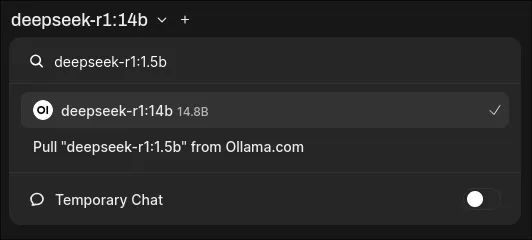
In the top left you can select your model:

If you don’t have the model you can type to correct ollama tag in the search bar and you can directly fetch it:
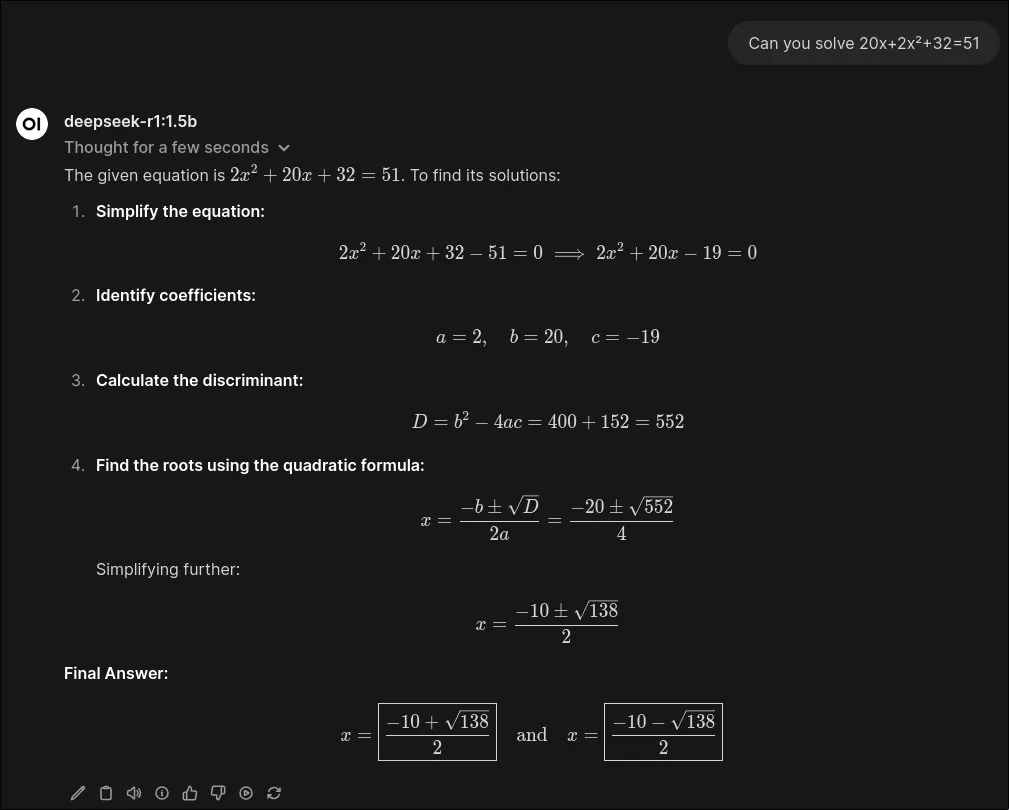
Now we can start to chat:
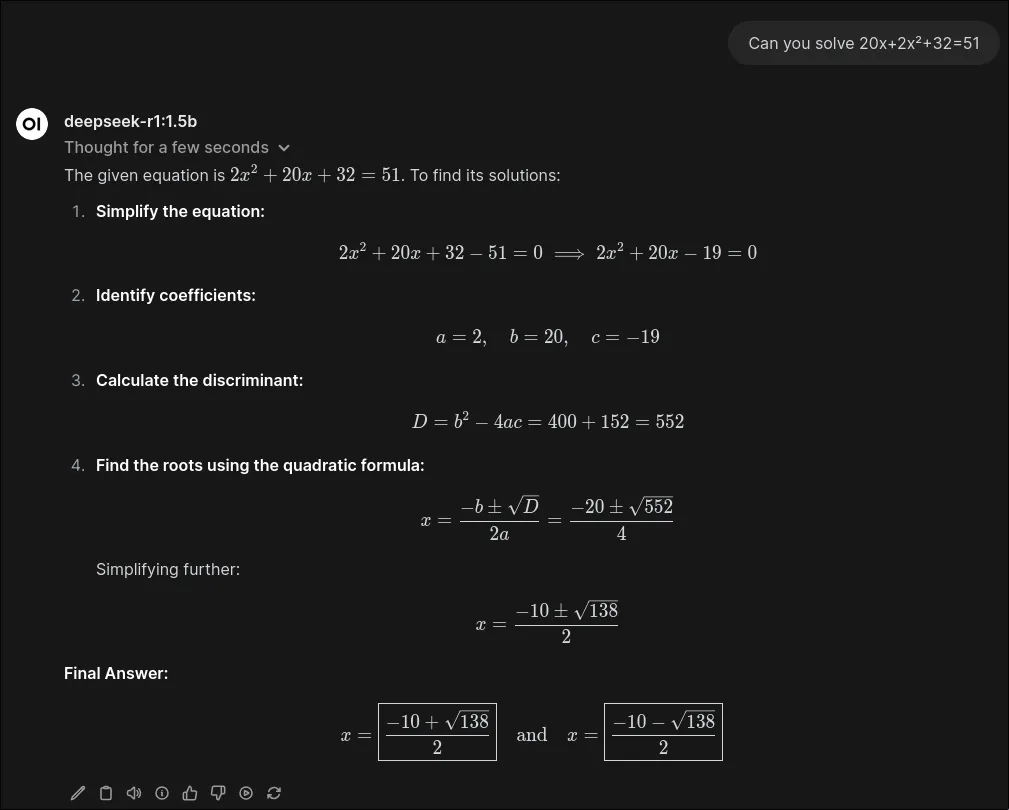
Because it is just a 1.5b model the output is blazing fast. Even more wonderfull is that it is correct as well. This is a great way to play around with LLM’s without having to worry about any cloud services.
Docker compose file
To make it even easier to run ollama and Open Web UI you can use the following docker-compose.yml file, this starts and links both services with just a simple docker compose up command.
# services section to define individual servicesservices:  open-webui:    # Name of the image to use    image: ghcr.io/open-webui/open-webui:cuda
    # Container name (based on the image name)    container_name: open-webui
    # Expose ports from the container    ports:      - "80:8080"
    # Environment variables to set in the container    environment:      - ADD_HOST=host.docker.internal:host-gateway      - OLLAMA_BASE_URL=http://ollama:11434
    # Volumes to mount between the host and the container    volumes:      - open-webui:/app/backend/data
    # Healthcheck configuration to ensure the service is running correctly    healthcheck:      test: ["CMD", "curl", "-f", "http://localhost:8080"]      interval: 10s      timeout: 5s      retries: 3      start_period: 40s
    # Flag to ensure the service restarts always    restart: unless-stopped
    # GPU configuration using CDI    deploy:      resources:        reservations:          devices:            - driver: cdi              device_ids:                - nvidia.com/gpu=all              capabilities: [gpu]
  ollama:    # Name of the image to use    image: ollama/ollama
    # Container name (based on the image name)    container_name: ollama
    # Expose ports from the container    ports:      - "11434:11434"
    # Volumes to mount between the host and the container    volumes:      - ollama:/root/.ollama
    # Healthcheck configuration to ensure the service is running correctly    healthcheck:      test: ["CMD", "curl", "-f", "http://localhost:11434"]      interval: 10s      timeout: 5s      retries: 3      start_period: 40s
    # Flag to ensure the service restarts always    restart: unless-stopped
    # GPU configuration using CDI    deploy:      resources:        reservations:          devices:            - driver: cdi              device_ids:                - nvidia.com/gpu=all              capabilities: [gpu]
# Volumes declarationvolumes:  ollama:  open-webui:
# Default network declaration for containers to communicatenetworks:  default:    driver: bridge
Things to try in the future
Now that we can run our “own” LLM’s we can try and adapt it to different use cases or needs. WebUI has many features such as pipelines, tools and standards prompt which we could setup for different tasks.
Altough more advanced we could also explore further training/finetuning of a model on specific data and then play around to see how it behaves.